
In my last blog post, I described how Salesforce Change Data Capture (CDC) could be used to trigger business processes running in middleware to facilitate integrations with other solutions. In this post, I take it a step further and describe how the middleware can support an integration with NetSuite.
Consider the case when an Order is approved in Salesforce, and it needs to be sent over to NetSuite for billing. A Sales Order needs to be created in NetSuite, so the Customer must be specified. For this to happen, the Account in Salesforce needs to be mapped to a Customer in NetSuite. This can be done by saving the corresponding NetSuite Customer internal ID in a custom field on the Salesforce Account record. But if the Account hasn’t yet been matched to a NetSuite Customer, the integration needs to figure out what is the best match.
This matching cannot be completely automated. Sometimes, a human is needed in the loop to look at a set of possible matches and decide which is the right one. This can be achieved using a middleware process that gets possible matches from NetSuite and attaches them to the Account record, along with a Lightning Web Component that displays the possible matches and enables a user to select the best match.
You can access the code for this project here. And there is also this YouTube video.
Account Custom Fields
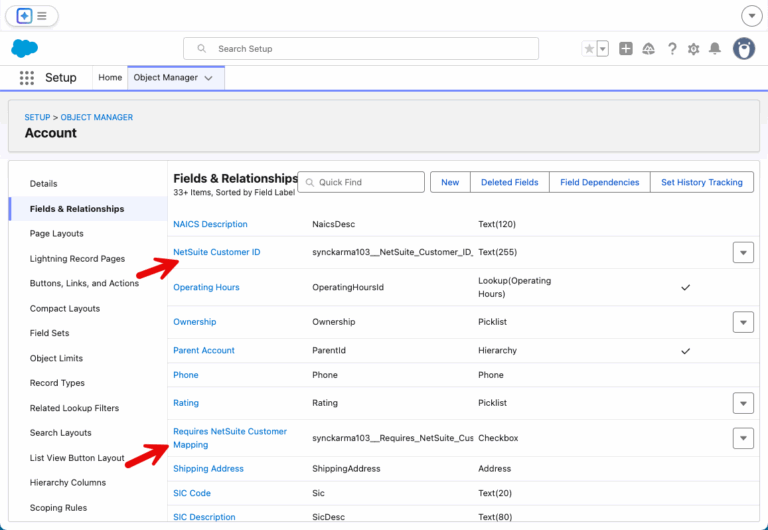
To implement the matching, a couple of custom fields are added to the Salesforce Account object.
NetSuite Customer ID – this is the internal Id of the NetSuite Customer that is linked to the Account.
Requires NetSuite Customer Mapping – this is a checkbox that, when selected, indicates that the Account needs a matching NetSuite Customer.
The idea is that, when something happens requiring a matching NetSuite Customer (e.g., the Account has and Order that needs to be pushed over to NetSuite for billing), and the Account doesn’t already have a match, then the checkbox is set and that starts a middleware process to find a match.
NetSuite Customer Match Object
This object is used to manage the matching process. It gets created when an Account record is flagged as requiring a NetSuite Customer Mapping. It is first created in a “Pending Middleware” state while the middleware collects a list of possible matches from NetSuite. Once the potential matches have been loaded (into Suggested_Matches_JSON__c), the status us updated to “Pending Review”. In this state, the object becomes visible on the Account record via an LWC where a user can review the potential matches. Key fields include:
- Account__c (Master-Detail to Account): parent Account that needs a NetSuite Customer.
- Status__c (Picklist): ‘Pending Middleware’, ‘Pending Review’, ‘Approved – Use Existing’, ‘Approved – Create New’, ‘Completed’, ‘Error’.
- Suggested_Matches_JSON__c (Long Text Area): JSON array of candidate NetSuite Customers returned by middleware.
- Selected_NetSuite_Internal_ID__c (Text): the internalid chosen by the human or returned after creation.
- Decision__c (Picklist): ‘Use Existing’ or ‘Create New’.
- Reason__c (Long Text): reason for requiring human review or error notes.
- Correlation_Id__c (Text): identifier shared with middleware logs for end-to-end tracing.
- Suggested_At__c (Datetime): when suggestions were generated.
- Resolved_At__c (Datetime): when a human completed the review.
Lightning Web Component for Human Review
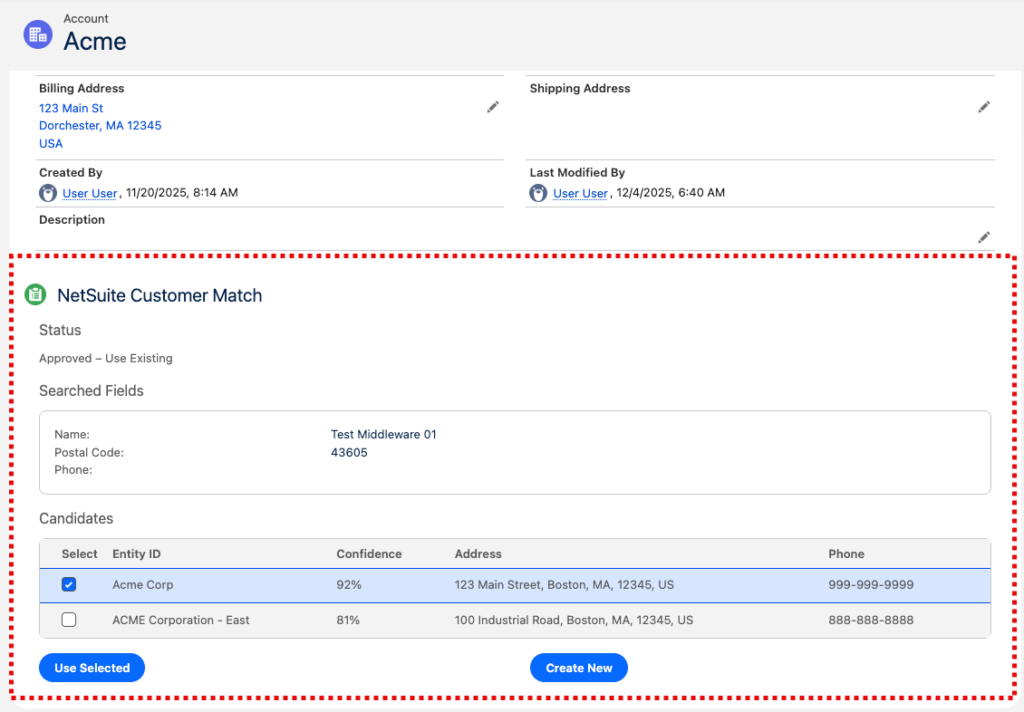
The middleware fetches a list of potential matches from NetSuite, creates the NetSuite Customer Match record, and attaches it to the Account. These potential matches are then shown to the user via a Lightning Web Component (LWC) shown below inside the red dotted line.
In this case our Salesforce Account (Acme) has 2 potential matches in NetSuite – Acme Corp and Acme Corporation – East. These potential matches were pulled based on the Searched Fields shown: Name, Postal Code, and Phone.
The user has selected Acme Corp. When they click on the “Use Selected” button, the internal Id from Acme Corp will be saved on the Acme Account record. This completes the matching process.
Salesforce Order is Activated - Middleware Processing
This matching process can be started when on Order gets activated. The middleware receives notification of a change to an Order. Business logic determines if the Order needs to be sent over to NetSuite as a Sales Order for invoicing. If so, then the Orders’s Account needs to be matched to a NetSuite Customer. So, the middleware sets the flag (Requires NetSuite Customer Mapping) on the Account indicating that it needs to be matched. See line 12 in the code below.
					    // Check if order is created and activated, or just became activated
const isStatusChanged = changedFields.includes('Status');
const isCreateAndActivated = changeType === 'CREATE' && orderChangeEvent.payload.Status === 'Activated';
const isStatusActivated = isStatusChanged && orderChangeEvent.payload.Status === 'Activated';

if (isCreateAndActivated || isStatusActivated) {
    // Always fetch full order data to ensure we have the latest AccountId
    const order = await Order.getOrder(orderId);

    // Check if order is actually activated
    if (order.Status === 'Activated' && order.AccountId) {
    await Account.updateRequiresNetSuiteCustomerMapping(order.AccountId, true);
    logger.info({ accountId: order.AccountId }, 'Successfully updated Account');
}
Of course, when the Account is updated, this will also be communicated to the middleware as an Account change. At this point, the matching process happens.
Account Matching to NetSuite Customer
When the middleware detects that the matching flag has been set, it calls a NetSuite endpoint (described in the next blog post) and gets back a list of possible matches. The debug logging in the code below shows the fields from Account that are used to find likely matches in NetSuite: account.Name, account.BillingAddress.PostalCode, and account.Phone. Line 15 calls the NetSuite endpoint and gets back a JSON object containing the likely matches. This gets used to create the match object which is attached to the Account (lines 17-18). The potential matches are not displayed in the LWC as shown above.
					const netSuiteCustomerId = account.synckarma103__NetSuite_Customer_ID__c;
const isNetSuiteCustomerIdNullOrBlank = !netSuiteCustomerId || netSuiteCustomerId.trim() === '';
if (
    changedFields.includes('synckarma103__Requires_NetSuite_Customer_Mapping__c') &&
    account.synckarma103__Requires_NetSuite_Customer_Mapping__c &&
      isNetSuiteCustomerIdNullOrBlank
    ) {
    logger.info({ accountId }, 'Getting matches from NetSuite...');
    logger.debug({
        accountId,
        accountName: account.Name,
        postalCode: account.BillingAddress?.PostalCode,
        phone: account.Phone
      }, 'Account details');
    const likelyMatchesJSON = await this.netSuite.getCustomerLikelyMatches(account);
    const namespace = process.env.SF_NAMESPACE ?? '';
    const netSuiteCustomerMatch = new NetSuiteCustomerMatch(accountId, likelyMatchesJSON, namespace);
    const netSuiteCustomerMatchId = await netSuiteCustomerMatch.createInSalesforce();
}
Summary of Matching Process
To summarize the matching process that is orchestrated by the middleware:
- An Order becomes Activated in Salesforce.
- Middleware detects the activation and marks the associated Account as needing a match in NetSuite.
- Middleware then detects this change in the Account and calls a NetSuite endpoint to get a list of prospective matches.
- A NetSuite Customer Match record is created in Salesforce and attached to the Account.
- The Lightning Web Component on the Account Record Page displays the potential matches so that a user can review and select the best match.
The code for this process can be found here. And below is a video that walks through the entire process.