
In this blog post, I show you how you can create REST endpoints that access NetSuite, so that you can build your own integrations with the ERP. First, you need to enable REST Web Services in NetSuite.
You can access the code for this project here. And there is also this YouTube video.
Enable REST Web Services
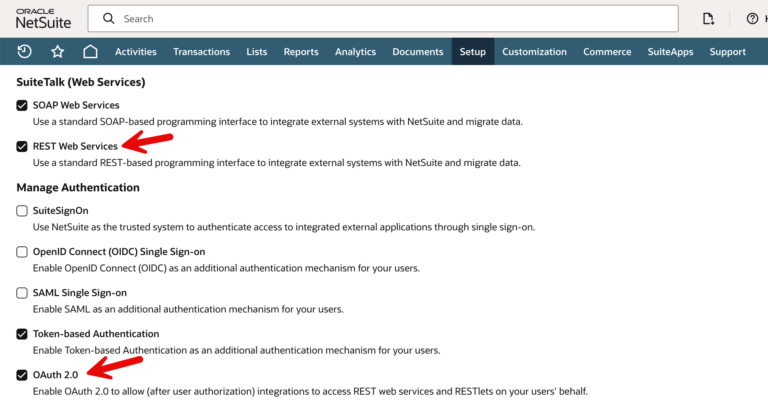
I’m going to use NetSuite RESTlets which are server-side scripts that create custom endpoints. RESTlets are written in SuiteScript – NetSuite’s JavaScript-based language for customization and automation. In order to use RESTlets, you need to enable REST Web Services and OAuth 2.0. To do that, go to the Setup tab > Company > Enable Features. Make sure that SuiteTalk (Web Services) > REST Web Services and Manage Authentication > OAuth 2.0 are enabled.
Although you can use Token-Based Authentication (TBA) to call RESTlets, OAuth 2.0 is the preferred approach for REST authentication in modern architectures.
Create an Integration User
In order to call REST endpoints, we need an integration user – an employee record that is a dedicated service account for integration. This is an important security step, because we want to tightly control what access is provided via REST and we want an easy way to audit all of the REST interactions.
To create the Integration User, navigate to Lists > Employees > Employees > New. Give the user a name, such as “OAuth Integration User” and provide an email. Email is required even if the integration user will never log in, so you can use anything. I usually use the ‘+’ method to create an email that is tied to mine, like “mark+nsint@rarekarma.com“.
Create an Integration Role
In addition to the integration user, an integration role is needed to define what access the integration user will have. For security purposes, the minimum necessary access should be provided.
For integration from Salesforce, I want to be able to create, view, and edit Invoices, Sales Orders, and Customers in NetSuite. Here is how these permissions are added.
Navigate to Setup > Users/Roles > Manage Roles > New.
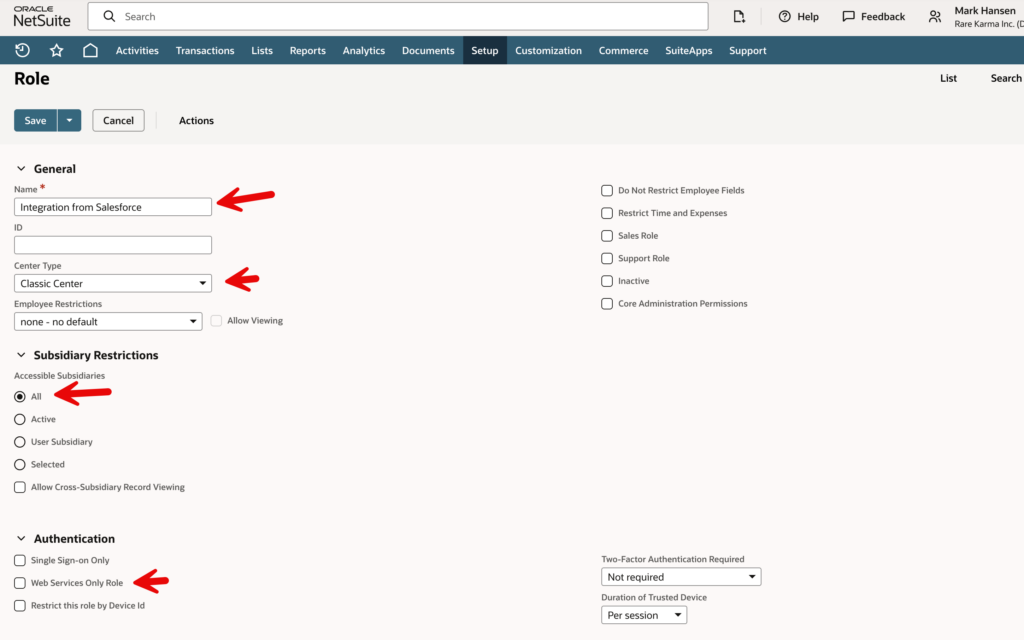
I’m going to name the role “Integration from Salesforce”. For Center Type pick “Classic Center” (this is the most neutral if you ever need to log in with this role). For Accessible Subsidiaries select “All” (for the most flexibility accessing data).
Under Authentication, DO NOT CHECK “Web Services Only Role” (counterintuitively, this prevents RESTlets from executing; it will also prevent you from logging into the UI for debugging and configuration).
Scrolling down, click on the Permissions tab and the Setup subtab, add:
REST Web Services (Full), Log in using OAuth 2.0 Access Tokens (Full) and SuiteScript (Full).

On the Transactions subtab add Invoices (Full) and Sales Orders (Full). Then, on the Lists subtab add
Customers (Full).
Note that these are categorized differently because in NetSuite, permissions are grouped based on the nature of the data and how it impacts the general ledger. Customers are considered Master Records, and therefore in the Lists category. Sales Invoices and Invoices are business events happening at a point in time, and so they are under Transactions.


Assign Role to the Integration User
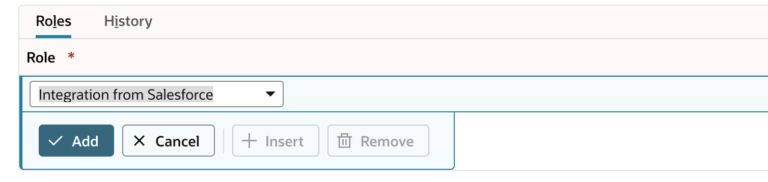
The last step in setting up access is to assign the role to the integration user. Head back over to the Lists > Employees, and click Edit next to the Oauth Integration user. Scroll down to the bottom of the page and select the “Access” subtab. Under “Roles” select “Integration from Salesforce”, click Add and Save.
Create the Integration Record
In NetSuite, an Integration Record defines the entry point and security gate for any integration, like Salesforce, that needs to communicate via API.
It generates a unique Application ID as well as a Consumer Key and Consumer Secret. It also provides an execution log and an access control point where administrators can block an integration by changing the state of the integration record to Blocked.These act as the “username and password” for the application itself, ensuring only authorized software can attempt a connection.
Before we create the integration record, let’s talk a little bit about what all this setup is accomplishing. We are going to be using the OAuth 2.0 Client Credentials Flow (Machine-to-Machine). This flow is preferred for backend, automated integrations that do not involve a user interface. It uses a certificate-based approach (instead of the Consumer Secret) for higher security. The Consumer Key (aka Client ID) will be mapped to a certificate (that we generate), as well as the integration user and role we previously created.
Authentication happens using a JWT (JSON Web Token) that has the Consumer Key as payload. The outside application signs a JWT using the private key (created when we generated the certificate). The public key is provided to NetSuite so that it can verify the signed JWT.
To create the Integration Record, go to Setup > Integration > Manage Integrations > New.
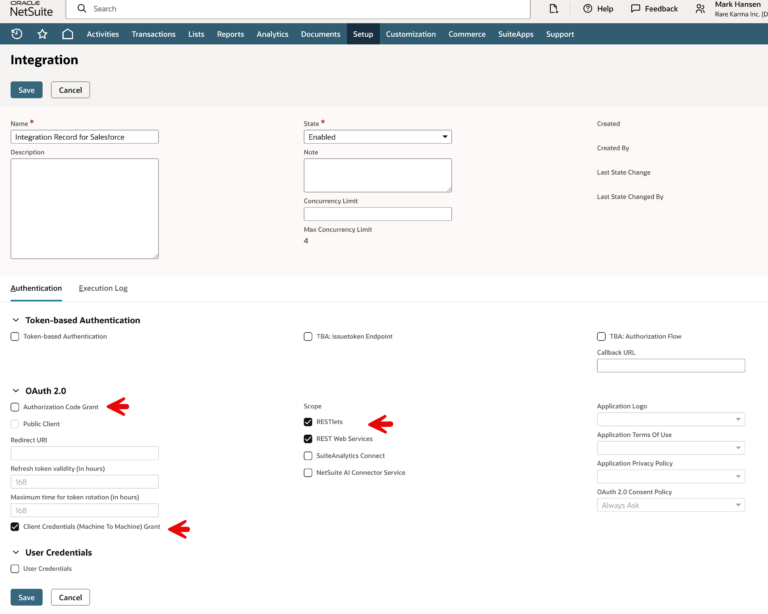
Give it a name like “Integration Record for Salesforce”. On the Authentication tab, check the Client Credentials (Machine to Machine) Grant box. Ensure REST Web Services and RESTlets are also checked. Also make sure that Authorization Code Grant is unselected.
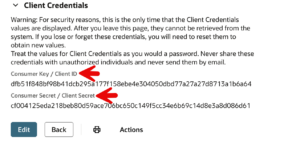
After clicking Save, scroll down and immediately copy the Client ID and Client Secret. They are only displayed once. Save them somewhere secure (like a Password Manager) where you can find them again.
Generate a Certificate Pair
As described above, you need to now generate a certificate (private key / public key). I’m on a Mac, and will do this in a terminal window using the ssh-keygen command. This can also be done on Windows, as described here: Key-based authentication in OpenSSH for Windows.
In the Terminal window, type the following command and press Enter:
ssh-keygen -t rsa -b 4096
When prompted to create a passphrase, leave it empty. Save the results in the default location suggested (/Users/yourusername/.ssh/id_rsa).
Your private key will be stored here: ~/.ssh/id_rsa (Keep this file secure and private!) and the public key here: ~/.ssh/id_rsa.pub (This is the key you share with NetSuite.)
You can view both key’s content using the cat command:
cat ~/.ssh/id_rsa.pub
cat ~/.ssh/id_rsa
You might want to copy/paste these keys into a password manager so you don’t lose track of them.
Map Client Credentials (M2M Setup)
Now, you need to upload the public key (certificate) file to Netsuite so that the signed JWT tokens used in communication from Salesforce can be verified. This is part of the M2M setup process that binds the User, Role, Application, and Certificate together.
Navigate to Setup > Integration > OAuth 2.0 Client Credentials (M2M) Setup and click “Create New”.
Select the following:
Entity: The Integration User – “OAuth Integration User”
Role: The Integration Role – “Integration from Salesforce”
Application: The Integration Record – Integration Record for Salesforce
For the Certificate, upload the public certificate file that you just created.
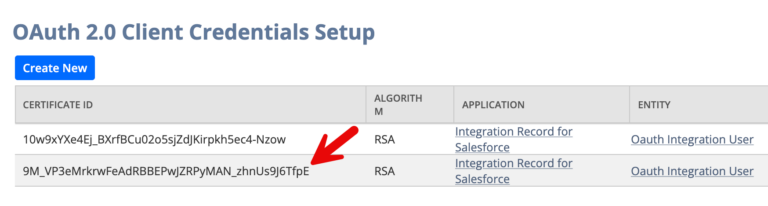
Click Save and note the Certificate ID. Save the Certificate ID as it will be used in making calls into NetSuite endpoints.
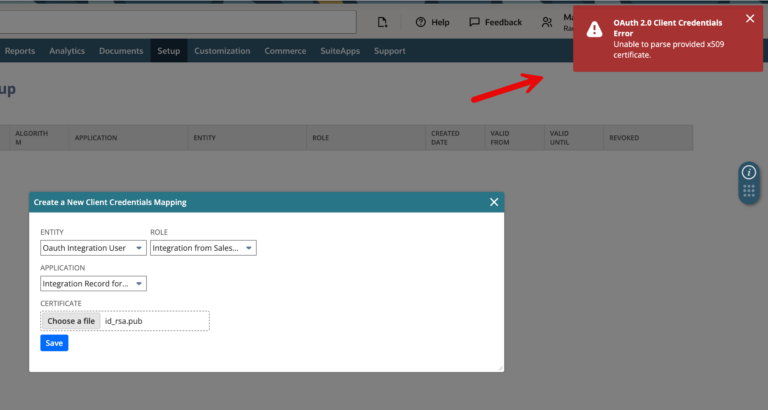
When I tried to save this, it failed. It failed because I didn’t generate exactly the type of certificate that NetSuite requires. Again, this process is quite finicky, so you may need to do a lot of trial and error. After reviewing the documentation, I found that i need the -x509 option and also to specify the exact number of days – 730 (2 years).
openssl req -x509 -newkey rsa:4096 -sha256 -keyout netsuite_private_key.pem -out netsuite_public_cert.pem -nodes -days 730
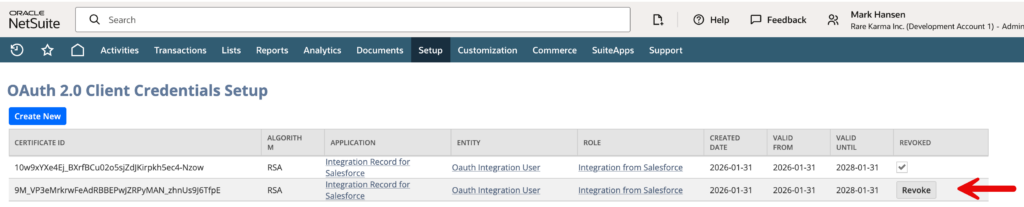
When I retry the upload with this new certificate, it succeeds – as you can see in the image below. Note that there is an older certificate in the top row. This has been revoked. You cannot delete old certificates, only revoke them. And once revoked, they cannot be restored. The new certificate appears in the 2nd row.
Setup Challenges for OAuth 2.0 Credentials
While setting up the OAuth 2.0 Client Credentials, I ran into a few challenges. The setup can be tricky too. Here are the issues that I found and how I overcame them.
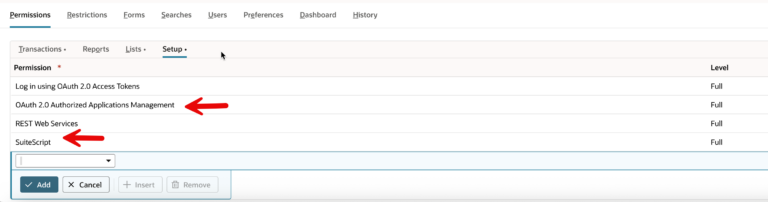
Initially, “OAuth Integration User” did not show up as a choice under “Entity”. I had to remove the SuiteScript and “OAuth 2.0 Authorized Applications Management” permission from the role (see image). This was my mistake. They are administrative privileges not allowed for an integration user.
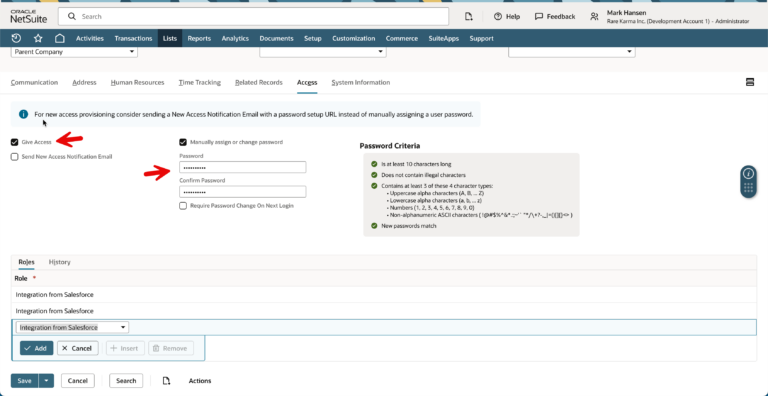
The second issue I ran into was that the integration user was not accepting in the “Integration from Salesforce” role. In the UI when I added the role, it appeared to save, but actually it was silently failing.
After a bit of trial and error, I realized that I needed to select “Give Access” and assign a password (under the “Access” tab), in order for the user to accept the role. I had assumed that, since the integration user does not need to log into the UI, it would not need a password.
Once these changes were made, I was able to assign the integration user and role to complete the M2M Setup.
In the next section, we will see how to make a call to authenticate. The application we are building for Salesforce integration will sign a JWT with its private key and send it to NetSuite’s token endpoint (/services/rest/auth/oauth2/v1/token) to receive an Access Token. This token will be used as a Bearer token in the RESTlet’s Authorization header.
Authenticating with a Client Assersion (JWT)
In order to make a REST call, our client application must first authenticate and get an access token from NetSuite. This happens by making a client assertion using a JSON Web Token (JWT). The header information needed is specified by RFC 7523 – JSON Web Token (JWT) Profile for OAuth 2.0 Client Authentication and Authorization Grants. The information that NetSuite required in the header is:
{“alg”: “PS256“, “typ”: “JWT”, “kid”: “9M_VP3eMrkrwFeAdRBBEPwJZRPyMAN_zhnUs9J6TfpE”}
Here ‘kid’ is the M2M certificate id that we just created.
The JWT payload must include the following:
- iss (Issuer): the Client ID (Consumer Key) from the NetSuite Integration Record.
- scope: A comma-separated list of required services, such as
restlets,rest_webservices, orsuite_analytics. - aud (Audience): The exact URL of your NetSuite Token Endpoint.
- iat (Issued At): Current Unix Epoch time in seconds.
- exp (Expiration): The time the token expires. It must be less than 60 minutes after the
iat.
Authenticating with NetSuite is a two-step process. First, we need to get the signed JWT. Then, we POST it to NetSuite to get back an access token.
We are using Postman to demonstrate REST API calls, and Postman does not have built-in capabilities to generated a signed JWT, so we have created a Node.js script for that purpose. You can get the code from github here: https://github.com/rarekarma/netsuite-jwt
Follow the instructions in README.md to configure the project for your credentials. You can copy the config.example.json into a config.json file, and populate the values as follows:
accountId: Your NetSuite account ID (e.g., “1234567” or “TSTDRV1234567”)consumerKey: Consumer Key from Setup > Integration > Manage IntegrationscertificateId: Certificate ID from Setup > Integration > OAuth 2.0 Client CredentialsprivateKeyPath: Path to your private key PEM file (default: ./privatekey.pem)expirationSeconds: JWT expiration time in seconds (default: 1800 = 30 minutes)scope: OAuth scope(s) for the token (see Scope section in README)algorithm: JWT signing algorithm (see Algorithm section in README)
Once you have created your config.json, you run the script using this command: node generate-jwt.js
The resulting output includes instructions for using Postman, plus the a signed JWT like this:
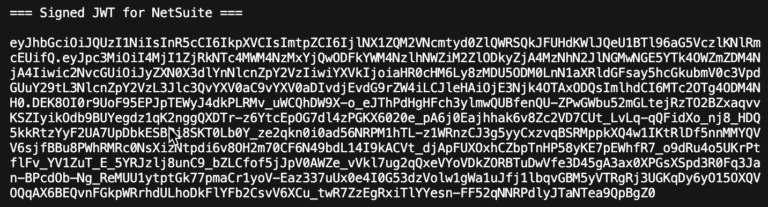
You paste that key into Postman for the client_assertion key in the Body, like this:
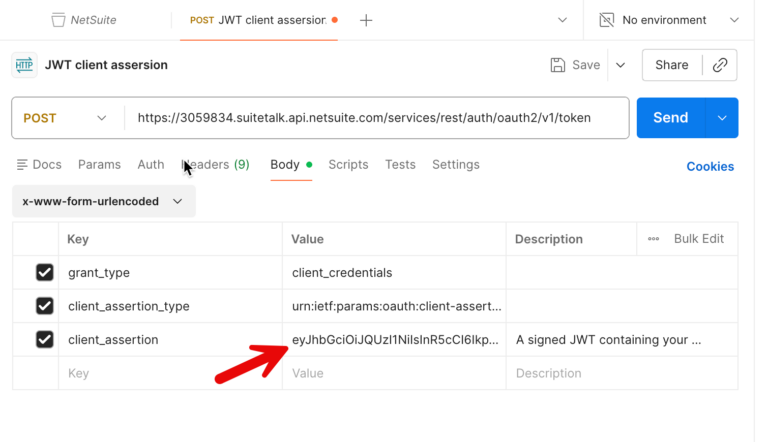
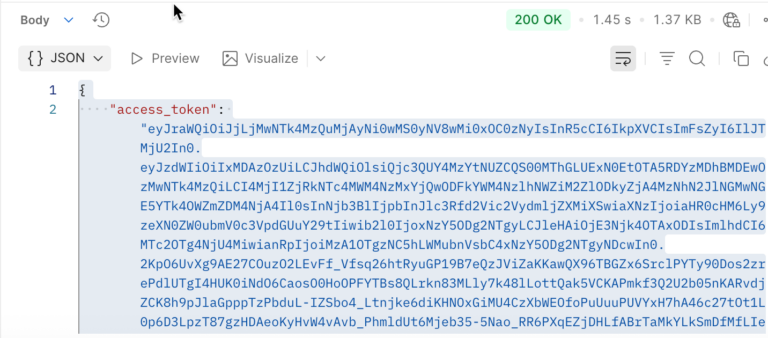
Then, when you Send the Postman request, as shown below – you should get back an access_token that can be used to make REST calls.
The companion video to this blog post includes a detailed walkthrough of using the Node.js script to generate the signed JWT, and then using Postman to get the access token.
Creating and Deploying a RESTlet
Now that we can create an access token, we can call a RESTlet from Postman. But first, we need to write and deploy one.
Our public repository synckarma103 for Salesforce-NetSuite integration code contains some examples that can be deployed. Under the netsuite folder, you will find get_first_10_glaccounts.js. This SuiteScript returns the first 10 GL Account names in alphabetical order.
					/**
 * @NApiVersion 2.1
 * @NScriptType Restlet
 * @NModuleScope SameAccount
 */
define(['N/search'], function(search) {

    /**
     * Handles GET requests - Returns first 10 GL account names in alphabetical order
     * @param {Object} requestParams - URL parameters
     * @returns {Object} Response with array of GL account names
     */
    function get(requestParams) {
        var glAccountNames = [];

        var accountSearch = search.create({
            type: search.Type.ACCOUNT,
            columns: [
                search.createColumn({
                    name: 'name',
                    sort: search.Sort.ASC
                })
            ]
        });

        var resultSet = accountSearch.run();
        var results = resultSet.getRange({
            start: 0,
            end: 10
        });

        results.forEach(function(result) {
            var name = result.getValue('name');
            if (name) {
                glAccountNames.push(name);
            }
        });

        return {
            count: glAccountNames.length,
            glAccounts: glAccountNames
        };
    }

    return {
        get: get
    };

});
The README.md file in the netsuite directory provides detailed instructions for how to install the SuiteCloud CLI and use it to deploy the RESTlet files. Once you have set up the CLI, you can simply use this command:
suitecloud project:deploy
The endpoint to call the RESTlet will be
https://XXXXXX.restlets.api.netsuite.com/app/site/hosting/restlet.nl?script=customscript_get_first_10_glaccounts&deploy=customdeploy_get_first_10_glaccounts
Where XXXXXX is your NetSuite account id.
Next, we can head over to Postman to call the endpoint.
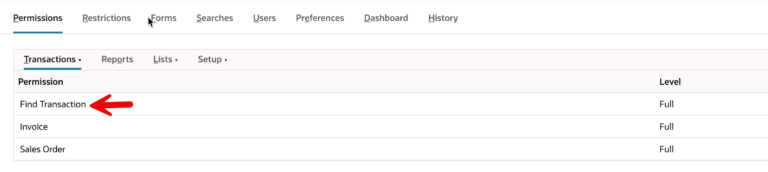
When I first tried to invoke the endpoint, it was returning 0 GL Accounts. I discovered that the role (Integration from Salesforce) was missing the “Find Transaction” permission. It seems that, even though the role had permission to view Accounts, because the RESTlet uses the NetSuite search module, the role also needs full access to “Find Transaction” in order to run the search.
This was a little challenging to debug, because no error message was thrown – the RESTlet silently returned 0 records.
Calling the RESTlet from Postman
Calling the RESTlet from Postman is a two step process. First, we need to get an access token, as described above.
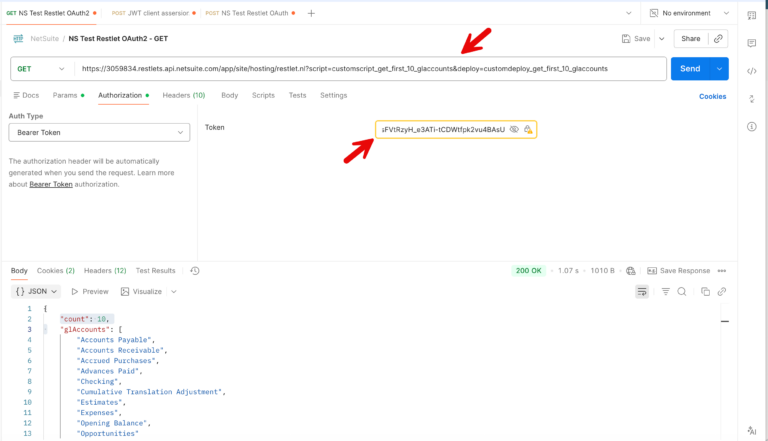
Then, we create a GET request in Postman using the endpoint shown above. Under the Authorization tab, select “Bearer Token” as the Auth Type and paste the access token into the Token field. You also need to ensure that (under the Headers tab) Content-Type is set to application/json.
Then, when you click “Send” you should see the first 10 GL Accounts (in alphabetical order) returned from NetSuite.
Conclusions
As you can see, calling RESTlets in NetSuite requires a fair amount of setup. Think of it as an investment in time, that unlocks a very powerful mechanism for integrating external platforms (like Salesforce) with NetSuite.
In this article, we used Postman to illustrate how to authenticate, and make calls to a RESTlet. Postman is a useful tool for debugging and testing. Obviously, when you are building applications, you would manage the authentication and outbound REST calls in your code, so there won’t be any cutting and pasting.
For a detailed walkthrough of this process, please check out the companion YouTube video below.